

To create a Facebook Page for a small business: sign in with a real personal account, open Facebook’s Page creation screen, enter the business name, category, and bio, then add accurate contact details, brand images, a suitable action button, and at least one useful post. Give each team member their own Page access rather than sharing a password.
A Facebook Page can help an Auckland or New Zealand small business publish updates, answer messages, show recent work, and run Meta advertising. It is free to create, but it still needs an owner, accurate information, and a clear role in the customer journey.
This guide was checked against current Meta help material on 26 August 2026. Meta changes labels and layouts regularly, so use the linked official instructions when a button appears in a different place.
Before you create the Page
Prepare these items first:
- The exact public business name
- The closest available business category
- A one- or two-sentence description
- Phone, email, website, address or service area, and opening hours
- A square logo and a wide cover image
- The action you want visitors to take
- The people who need access and the level each person needs
Do not create a shared personal profile for the business. The person creating the Page should use their authentic Facebook account, then give colleagues or an agency appropriate Page access.
Step 1: create the Facebook Page
Sign in to Facebook and open the official Create a Page screen. Enter:
- Page name: normally the trading name customers already know
- Category: the closest description of the business
- Bio: what you do, who you serve, and the relevant location
Review the preview, create the Page, and follow Facebook’s prompts. Meta also maintains current Facebook Page video tutorials through Blueprint.
Avoid adding extra keywords to the Page name. Consistency with the website, signage, invoices, and Google Business Profile is more useful than trying to turn the name into an advertisement.
Step 2: add recognisable brand images
Use the logo as the profile image when it remains readable at a small size. Use the cover for the business itself: a team, venue, product, completed project, or clear branded image.
Facebook displays images differently across devices and may crop them. Keep important text and faces away from the outer edges, upload a sharp source file, and inspect the result on both desktop and mobile. Fixed pixel recommendations become outdated quickly, so use Facebook’s current upload preview rather than an old size chart.
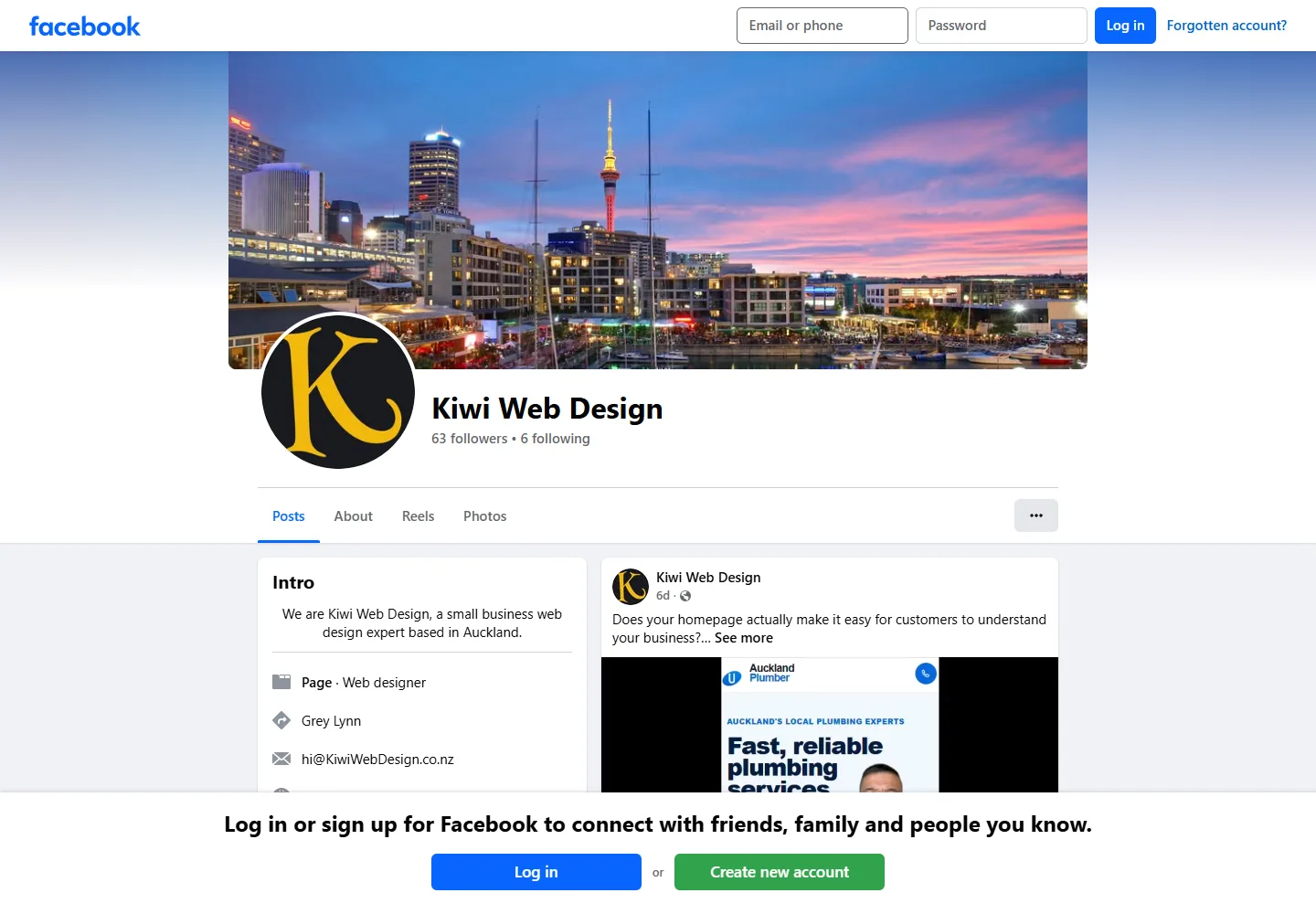
Example: Kiwi Web Design’s public Facebook Page as viewed while signed out on 26 August 2026. The logo, cover, description, category, location, email, website, and recent post are visible without relying on a follower statistic.
Step 3: complete contact and business information
Add the details customers need to verify and contact the business:
- Website address
- Business email and phone
- Address or service area
- Opening hours
- Business category
- Short description
- Any relevant booking, ordering, or messaging destination
Use the same public details on the website and Google Business Profile. Check the Page while signed out or in a private browser window to see what a customer can actually view.
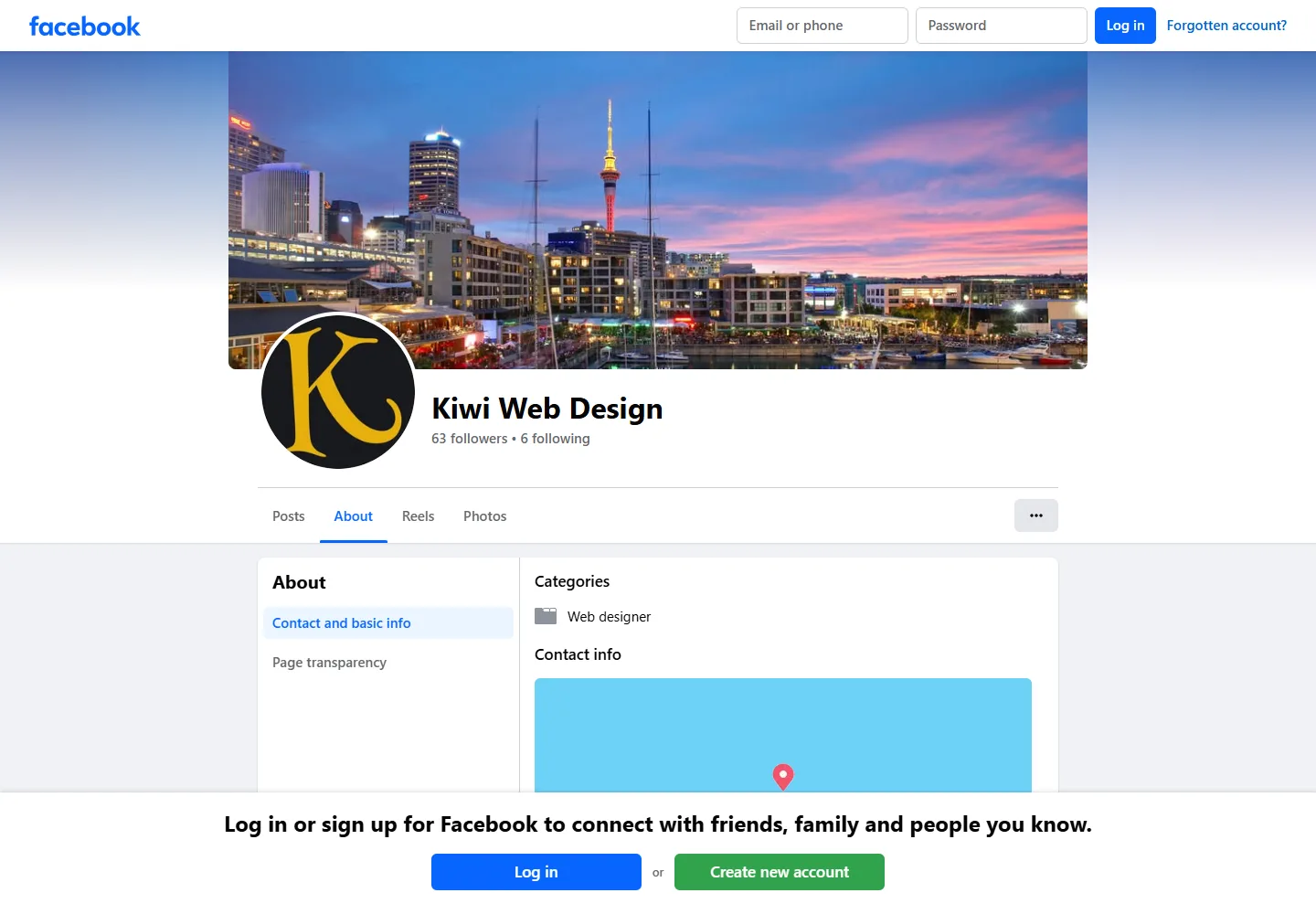
The public About view makes missing or inconsistent information easier to spot. Facebook’s signed-out prompt may cover lower sections, so confirm the final Page from a second device as well.
Step 4: choose a username carefully
If Facebook offers a Page username, choose a short version of the business name that is easy to say and type. Avoid temporary campaign wording or a location the business may outgrow.
The username helps create a cleaner Facebook URL, but it is not a substitute for the business’s own domain. Keep the website address prominent in the Page information.
Step 5: add one useful action button
Choose the button that matches the next step customers should take, such as calling, sending a message, visiting the website, or booking. The options available can vary by Page and category.
Meta’s current action button instructions require the person making the change to have Facebook access to the Page. After saving the button, test it as a visitor on mobile and desktop.
Do not send every business to Messenger by default. A booking business may be better served by a booking page; a service business may need a quote form that collects job details; an ecommerce business may need the relevant product or shop page.
Step 6: publish enough information to make the Page credible
Start with a small set of useful posts rather than an empty Page:
- A clear introduction to the business and service area
- A real product, service, project, or venue example
- An answer to a common customer question
- A link to the most relevant website page
- Current contact, booking, or opening information
There is no universal posting frequency that guarantees reach or search visibility. Choose a rhythm the business can maintain, and prioritise accurate updates over filler.
Step 7: give people access without sharing passwords
Meta distinguishes between Facebook access and task access. A person with full control can manage settings and other people’s access, so reserve that level for trusted owners or administrators. Give agencies and staff only the permissions their work requires.
Use Meta’s current guide to give, edit, or remove Facebook Page access. Review access when a staff member, contractor, or agency relationship ends.
Keep a separate record of:
- Who has full control
- Who has task access
- Which ad account and Instagram account are connected
- Which email address receives security and business notifications
- When access was last reviewed
Step 8: connect Facebook to an owned customer journey
Facebook is a useful distribution and conversation channel, but the platform controls the account rules, interface, reach, and available features. Your website and domain provide a more stable place for detailed service information and conversion tracking.
Use this handoff:
| Facebook does | Your website does |
|---|---|
| Introduces the business through updates and social proof | Holds complete, structured service information |
| Starts messages and conversations | Captures quote, booking, or purchase details |
| Distributes posts and paid ads | Provides a campaign-specific destination |
| Shows recent activity | Preserves durable business information |
| Reaches followers on Meta’s platform | Gives the business control of the domain and analytics |
Link posts and the Page action button to the most relevant page, not automatically to the homepage. A treatment post should reach that treatment and booking route. A project post should reach the matching service or case study.
SEO: what a Facebook Page can and cannot do
A complete Page can help people verify the business and may appear in search results. It does not replace a website’s crawlable service pages, technical controls, structured internal links, or first-party conversion data.
Use natural, accurate business language in the Page description and posts. Do not repeat location keywords unnaturally or assume that frequent posting directly improves the website’s Google rankings. For durable local visibility, connect the Page to a well-maintained small-business website, local SEO, and an optimised Google Business Profile.
Common setup mistakes
- Creating the Page through a shared or fake personal account
- Giving every contributor full control
- Leaving the website, hours, or contact details incomplete
- Using a tiny logo or a cover image with important text at the edge
- Choosing an action button without testing the destination
- Sending campaign traffic to a generic homepage
- Treating Facebook as the only copy of important business information
- Publishing claims, images, or customer details without permission
- Forgetting to remove access when a working relationship ends
Frequently asked questions
Is a Facebook Page free for a small business?
Creating a Page is free. Advertising, professional content, management tools, and staff time may cost money. Decide what role the Page will play before committing to a content or advertising budget.
Will customers see my personal Facebook profile?
The Page is a separate public presence, but it is managed through real Facebook accounts. Use Page access controls and check the public view. Do not share a personal-account password with staff or an agency.
Do I need a website if I have a Facebook Page?
For most established businesses, the two serve different purposes. Facebook supports discovery, updates, messages, and advertising. A website provides controlled service information, enquiry or booking journeys, search architecture, and first-party measurement.
Should I link Facebook posts to my homepage?
Only when the homepage is the best answer. Link to the specific service, product, booking, event, or case-study page when one exists. Reducing the number of steps makes the handoff clearer.
Build the Page, then build the handoff
A useful Facebook Page is accurate, recognisable, securely managed, and connected to a customer journey the business controls. Set up the basics, test the public view, and make every action button or post link earn its place.
Visit Kiwi Web Design on Facebook or contact us for help connecting social campaigns to a practical Auckland website and enquiry path.